EMPLOYEE SCHEDULING
Build the week without chasing everyone first
Availability, roles, locations and open positions live in the same place as the schedule — so the week comes together in one pass instead of three.
THE WEEK, END TO END
One pass through the week
Scheduling in Toonio isn’t a blank calendar you fill in. It’s four steps, with the information you need already on the screen.
01
Availability in
Your team says when they can work, before you open the week.
02
Build the week
Create the shifts the week actually needs, by role and location.
03
Fill what’s open
Assign people to open positions, with their availability in view.
04
Publish
One version of the week, visible to everyone who is on it.

BEFORE YOU PLAN
Start from who can actually work
Availability arrives before you open the schedule, not after you send it. Your team submits it from their own view, and it is on screen while you assign shifts — including who hasn’t answered yet.
Staff submit it themselves
From their own Toonio view, for the weeks you are about to plan.
Time off is part of the same picture
Approved leave shows up where you are planning, not in a separate list you have to remember.
ROLES & LOCATIONS
Shifts that match how the place actually runs
A shift carries the role it needs — bar, floor, kitchen — and the location it belongs to. A shift that doesn’t need a role can go without one.

Three views of one week
Read the same schedule by shift, by role or by person, depending on what you are checking.
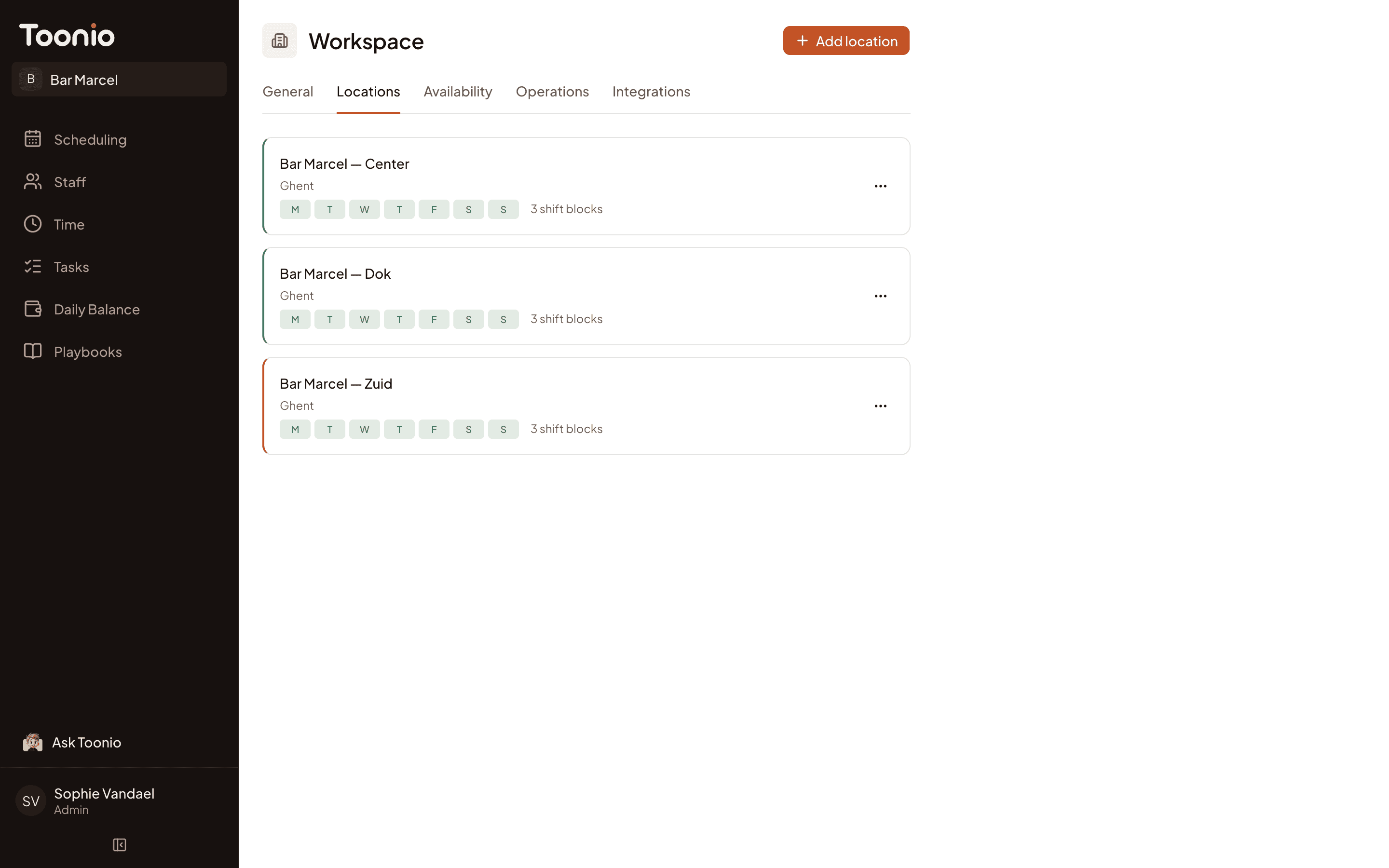
More than one location
Each location keeps its own team, opening hours and shift blocks, inside one workspace.
OPEN SHIFTS
You don’t have to finish the whole puzzle in one sitting
In Toonio a shift is the work, not the person. Create everything the week needs, then assign people as you know them — open positions stay visible on the board until someone is on them.
Create the shift, assign it later
Creating a shift never assigns anyone. What’s still open is always the positions the shift needs minus the people on it, so it can’t go stale.
See who could cover it
Open a position and Toonio ranks who fits on plain signals — role, location, submitted availability, preference, hours already scheduled, and whether it would clash with another shift.
Warnings, not walls
If someone isn’t available or is already scheduled, Toonio says so plainly and still lets you assign them. It’s your call, not the software’s.

WHEN THINGS CHANGE
The schedule you published on Monday isn’t the one you’ll run
Changes are normal in hospitality. The point isn’t to prevent them — it’s to keep one version of the week correct.
Availability changes
Someone updates what they can work, and it’s there the next time you plan a week.
Someone drops out
Cancel the assignment and the position goes back to open, ready for someone else.
The shift itself moves
Change the time, the role or the block on a shift that already exists — no cancelling and recreating it.
The team sees what changed
Edit a week you already published and the change reaches the team straight away — staff see the shift flagged as updated in their own view.
PUBLISH
One version of the week, and everyone has it
Publishing is a deliberate step. Until you take it the week is a draft only managers can see. After it, staff see their own shifts — and any shift you change afterwards is flagged as updated for them.

Draft until you say so
Nothing reaches staff until you publish the week yourself.
Changes reach them straight away
Edit a shift in a published week and it updates in the team’s view, marked as updated.
Send it to the group chat too
Toonio can write the published week as a plain-text message for WhatsApp. You preview it, edit it and send it yourself — Toonio never posts anything.
WHAT THE TEAM SEES
The schedule isn’t finished until the team has it
Their own week
Shifts, times, roles and locations — their own, not the manager board shrunk onto a phone.
Changed shifts are marked
If a shift changes after the week was published, it is flagged as updated in their view.
Availability in the same place
They update what they can work from the same app where they check their shifts.
BUILT FOR HOSPITALITY
Scheduling built around service, not office hours
Weekend peaks, students and flexi-jobbers, a team that changes shape every week. The workflow above was designed for that, not adapted to it afterwards.
QUESTIONS
Scheduling questions, answered
Can staff submit their own availability?
Yes. Staff share when they can work from their own view, and that availability is visible while you build the schedule — including who hasn’t submitted anything yet.
Can I schedule different roles?
Can I create a shift without assigning someone straight away?
Can I schedule more than one location?
Can staff see their schedule on their phone?
Start next week’s schedule in Toonio.
Availability, roles, locations and open shifts, in one place.

